

How to switch web hosting without downtime or losing email
12 min read · By the Shroti Host team, founded by Priyanshu Shroti


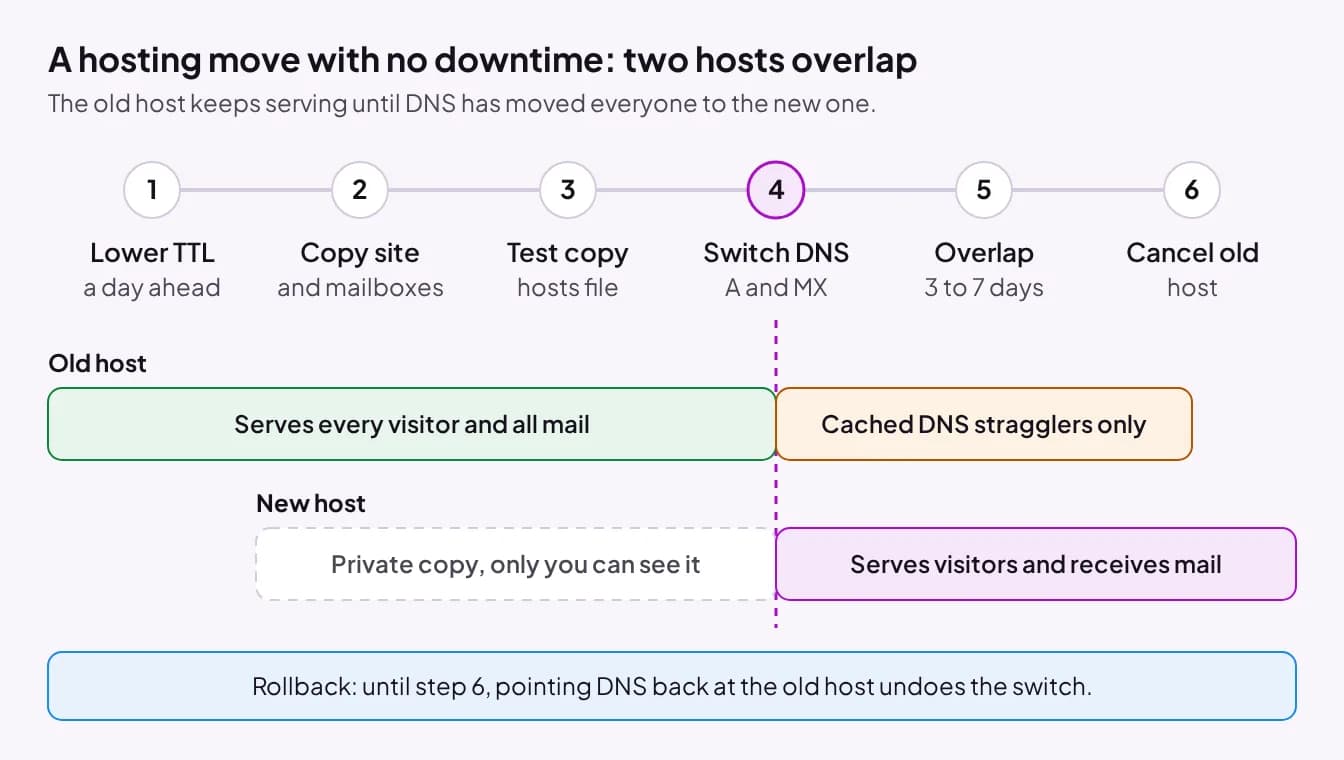
Short answer: Keep the old hosting running, copy the site and mailboxes to the new host, test the copy through a hosts-file entry, and only then change DNS. Visitors always reach one working server or the other, so the site never goes down. Cancel the old plan after a few days of overlap, once nothing is arriving there.
This guide is for anyone who has decided to leave a web host and has a live site, live email, or both, that cannot go dark during the move. It gives the full do-it-yourself method: what to copy, how to test the new server privately, how to move mailboxes, and how to undo the switch.
Changing hosting moves the website and mailboxes to a different server. The domain registration can stay with your current registrar. Moving that too is a separate job, covered in how to transfer a domain, and is safer done after the site move is finished.
What moves when you change hosting, and what stays?
Five things move to the new server: the site's files, its databases, the mailboxes, the small settings around them (forwarders, cron jobs, PHP version), and the DNS records that say where the domain lives. The domain registration stays where it is.
Downtime in a move usually comes from one of two mistakes: changing DNS before the copy is tested, or cancelling the old account before DNS has moved everyone. The method below avoids both by keeping two working copies and treating DNS as the only switch.
| Part | Where it lives now | How it moves |
|---|---|---|
| Website files | The old server's home directory | Backup and restore, or copy over SFTP or FTP |
| Databases | MySQL on the old server | Export a .sql dump and import it on the new server |
| Mailboxes | The old server, or a separate mail service | Recreate the mailboxes and copy the mail, or leave mail hosted elsewhere alone |
| Forwarders, filters, cron jobs | Old control panel settings | Carried by a full cPanel backup, otherwise recreated by hand |
| DNS records | Wherever your nameservers point | Edited last: this is the switch |
| SSL certificate | The old server | Reissued on the new server once the domain points there |
| Domain registration | Your registrar | Does not move |
Before you start: lower the TTL and write down every record
Lower the TTL on your DNS records at least a day before the switch, because TTL (time to live) is how long resolvers around the internet keep an old answer before asking again. With a TTL of 14400 seconds, some visitors keep reaching the old server for up to four hours after a change. Set the A, www and MX records to 300 seconds, then wait at least as long as the old TTL so every cache holds the shorter value. Google's guide to changing hosting also advises lowering the TTL ahead of the move.
Then take an inventory, because what gets lost in a move is what nobody remembered existed. DNS records explained covers each record type.
- Every DNS record on the domain: A, AAAA, CNAME, MX and every TXT record (SPF, DKIM, domain verification). Save them in a text file.
- Every mailbox, forwarder and autoresponder, and whether each person reads mail over IMAP or POP.
- Cron jobs, the PHP version, and any PHP settings you changed.
- Subdomains and addon domains, each with its own folder and database.
- Where your DNS is actually hosted: at the registrar, at Cloudflare, or on the old host's nameservers. This decides how you switch later.
Route A: cPanel to cPanel with a full account backup
If both the old and new host run cPanel, a full account backup is the simplest route, because one archive carries the home directory, the MySQL dumps, the DNS zone, the SSL certificates and the cron table together. Mailboxes sit inside the home directory, so they travel too. cPanel documents the archive's contents in its backup tarball reference.
There is one catch. In cPanel's words, "You cannot automatically restore a full backup file in cPanel." A full backup is restored from WHM, by the hosting provider. Ask the new host whether they will restore one before you rely on it. If not, use the partial backups from the same screen (home directory and each database), which the cPanel Backup documentation says can be restored through cPanel yourself.
- On the old host, open cPanel, go to Backup, and generate a full account backup to the home directory.
- Download the finished .tar.gz file to your computer. Keep this copy: it is also your safety net.
- Send it to the new host for restoring, or upload the partial backups yourself under Backup, in the Restore section.
- Check the new account: files in public_html, databases present, mailboxes listed, cron jobs in place, the same PHP version selected.
Route B: how do you move a WordPress site from any host?
A WordPress site is two things, a folder of files and one MySQL database, and moving it means copying both. The WordPress documentation on migrating WordPress puts it plainly: "If database and URL remain the same, you can move by just copying your files and database." Because you are keeping the same domain, nothing inside the database needs rewriting.
By hand: download the WordPress folder over SFTP (zipping it in the old host's file manager first is faster), export the database from phpMyAdmin as a .sql file, upload the files to the new server, create an empty database and user there, import the .sql file, and edit wp-config.php so DB_NAME, DB_USER and DB_PASSWORD match. With a plugin: Duplicator or All-in-One WP Migration packages files and database into one archive that you restore on the new server. Free versions can run into size limits, so a large media library may push you back to the manual route.
This route works when the old host has no cPanel. It moves the website only: mailboxes are a separate step, covered below. A plan built for WordPress, such as our WordPress hosting, adds a one-click installer and LiteSpeed Cache on the other side, but the copy itself is the same on any host.
How do you test the new server before changing DNS?
Add one line to the hosts file on your own computer, which makes only your machine load the domain from the new server while everyone else still sees the old one. The line is the new server's IP address, a space, then the domain and its www form, for example: 203.0.113.10 example.com www.example.com.
On Windows the file is C:\Windows\System32\drivers\etc\hosts, opened in Notepad run as administrator. On macOS and Linux it is /etc/hosts, edited with sudo. Save it and open the site in a private browser window.
Expect a certificate warning at this stage. A free SSL certificate is issued by proving the domain points at the server, and yours does not point there yet, so the new server has no trusted certificate for it. Accept the warning for the test. Then click through the site properly: the home page, inner pages, images, the contact form, the login, and a test order if it is a store. Fix anything broken now, while no visitor can see it. Afterwards, delete the line from the hosts file, or you will lose track of what the public sees.
How do you move email without losing mail?
You move email without losing mail by having the same mailboxes exist on both servers before DNS changes, so that a message is accepted wherever it lands. The steps depend on where the mail is hosted today.
If your mail is with a separate service (Google Workspace, Zoho Mail, Microsoft 365), do not move it. Copy the MX and TXT records unchanged into the new DNS zone. Then check one setting on the new server: in cPanel, open Email Routing and choose Remote Mail Exchanger. cPanel's Email Routing documentation says that with the local setting "the server will always accept mail for the domain". Left on the local setting, the web server delivers the site's own messages to you (contact forms, order notices) into an empty local mailbox instead of your real inbox.
If your mail is on the old host, create every mailbox on the new server with the same address before the switch (a restored full cPanel backup has already done this). To copy existing mail, add both accounts to a desktop mail client such as Thunderbird over IMAP, using each server's hostname or IP address instead of mail.yourdomain.com, and drag the folders from the old account to the new one. Anyone on POP may hold the only copy on their own device, so export that mail first.
Switch the MX record at the same moment as the A record. For a while afterwards, some senders still deliver to the old server. That mail is not lost: it sits in the old mailbox. Log in to the old host's webmail by its server address each day of the overlap and move anything new across. Finally, if the SPF record names the old server's IP address, update it, or outgoing mail will start failing SPF checks. If mail lands in spam after the move, work through emails going to spam from cPanel.
The switch: change DNS, run both hosts, keep a way back
The switch is a DNS edit and nothing else: point the domain's A record (and www, and MX if mail is moving) at the new server, then leave the old account running. Do it at a quiet hour, on a day when you can watch it.
How you make the edit depends on where your DNS is hosted. If it is at your registrar or at Cloudflare, change the A and MX records there. With the TTL at 300 seconds, most visitors move within minutes. If the domain uses the old host's nameservers, first recreate every record from your inventory in the new host's DNS zone, then change the nameservers at your registrar. Nameserver changes are cached outside your control and can take up to 48 hours to settle. Both methods are in how to point a domain to your hosting.
A site that writes data (a store taking orders, a forum, a booking form) needs one extra step, because an order placed on the old server after you copied the database will not exist on the new one. Just before the switch, put the old site into maintenance mode or pause checkout, export the database one last time, import it on the new server, and then change DNS. A busy store trades a short pause in orders for no lost orders.
After the switch, confirm the new server is answering (run nslookup yourdomain.com and compare the IP), check that the SSL certificate has been issued, send a test email in both directions, and submit your own contact form. Keep the old hosting for at least 3 to 7 days. Until you cancel it, rollback is one edit: point the records back at the old IP address and the low TTL returns visitors within minutes. Once the new site has run cleanly for a few days, raise the TTL again, download a last backup from the old host, and cancel it.
What does Shroti Host's free migration cover?
Shroti Host migrates your site free of charge on every shared, WordPress and unlimited hosting plan, and our team does the work: files, databases and email. It is not included on reseller hosting, master reseller hosting or VPS. On those lines you move accounts yourself, with the method above.
You open a ticket with your current hosting control panel login, or a full backup if you would rather not share access. We copy the site to your new account and give you a preview link to check it. You point the domain at us when you are happy with the copy, and that DNS change is the only moment anything changes for visitors. We do not quote a completion time, because it depends on the size of the site. Keep your old plan active until you have checked the copy and switched DNS.
Two things stay with you: the DNS change, because the domain sits at your registrar, and the decision to cancel the old host. Our shared hosting plans start at ₹49 a month (excl. service fee) and renew at the listed price. If you would rather do the move yourself, everything above works on our cPanel hosting as it does anywhere else.
Frequently asked questions
Will I lose my emails if I change hosting?
Not if you copy the mailboxes before you switch DNS. Create the same addresses on the new server, copy existing mail across over IMAP, and change the MX record together with the A record. Mail that reaches the old server during the overlap stays in the old mailbox until you move it. If your mail is with Google Workspace or Zoho, it is not affected as long as the MX records are copied unchanged.
How long does it take to change web hosting?
The copy takes as long as your site is big: minutes for a small site, hours for one with many gigabytes of files or mail. The DNS switch reaches most visitors within minutes when the TTL was lowered in advance, and can take up to 48 hours when nameservers change. Plan a week from first backup to cancelling the old host, most of it spent waiting.
Does changing hosting affect SEO?
A hosting change keeps every URL the same, so there is nothing for search engines to remap. Google's guidance for this kind of move is to lower the TTL, test the new copy, and keep the old host until its traffic reaches zero. It also says a temporary drop in Googlebot's crawl rate right after the move is normal. Downtime and broken pages are what cause harm, which is why testing first matters.
Do I need to transfer my domain name to the new host?
No. The domain registration and the hosting are separate services. You can keep the domain at its current registrar indefinitely and only change its nameservers or its A and MX records to point at the new server. Transferring the registration is optional, takes several days, and is best left until the site move is finished and stable.
How long should I keep my old hosting account after moving?
Keep it for at least 3 to 7 days after the DNS switch, and longer if you changed nameservers. During that time, check the old server's mailboxes for late deliveries and watch for anything missing on the new site. Download a final backup before cancelling. If the old plan is about to renew, paying for one extra month is cheaper than a rushed move.
How do I check that my site is loading from the new host?
Run nslookup yourdomain.com in a terminal and compare the IP address in the answer with the new server's IP. A propagation checker shows the same thing from many locations at once. For a visual check, upload a small text file to the new server only and request it in a private browser window: if it loads, you are on the new host.
Is migration free on Shroti Host reseller hosting or VPS?
No. Free migration by our team is included on shared, WordPress and unlimited hosting plans only. Reseller hosting, master reseller hosting and VPS do not include it. On those plans you move the accounts yourself, and the steps in this guide (backup, restore, hosts-file testing, DNS switch with an overlap) apply to each account you move.
#web-hosting#migration#dns#email#cpanel
See shared hosting plans
Free migration by our team on every shared, WordPress and unlimited plan: we copy first, you switch DNS last. From ₹49/mo, excl. service fee.
7-day money-back guarantee · Same renewal price, every cycle